
office ergonomics tips that improve comfort and productivity

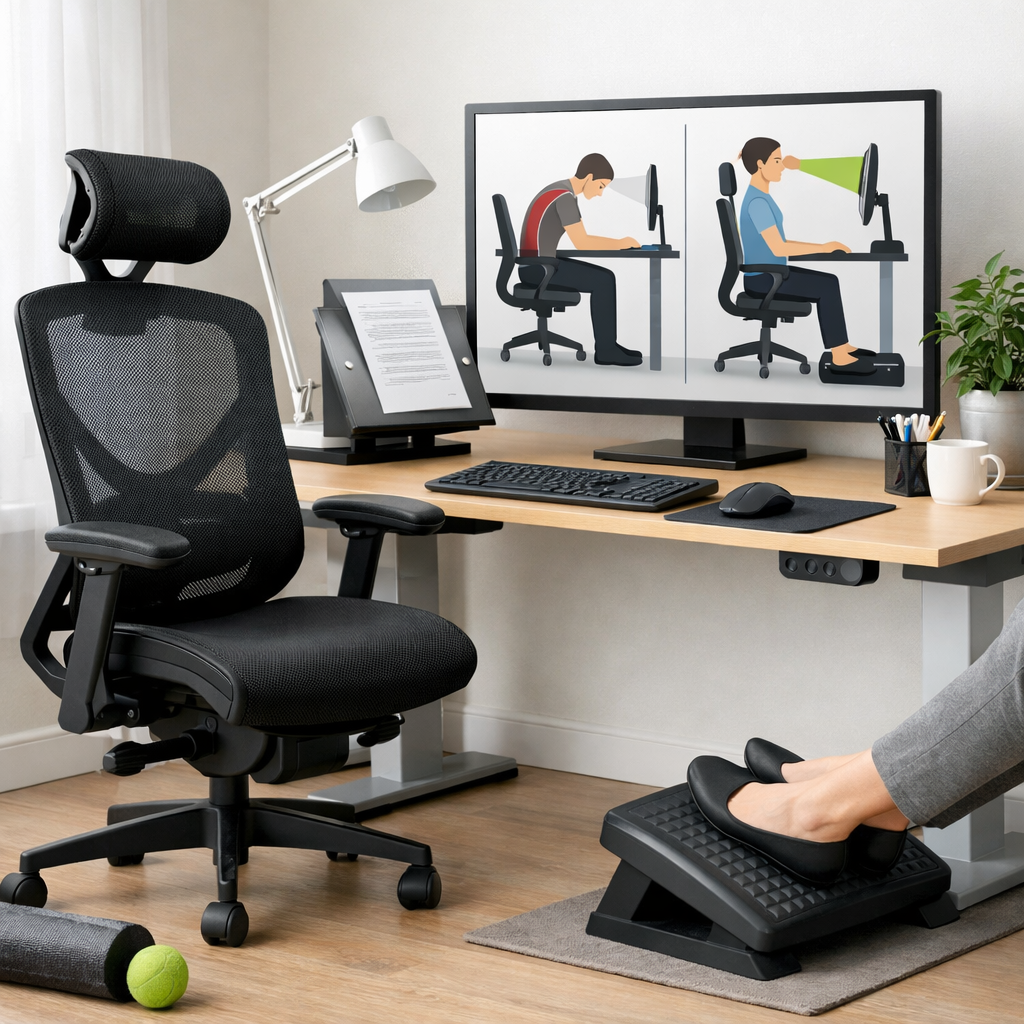
Office ergonomics tips can make a noticeable difference in how you feel at work each day.
Small changes to your chair, screen, keyboard, and work habits can reduce strain, improve focus, and help you stay productive without ending the day sore and tired.
Many office workers accept neck stiffness, lower back pain, wrist discomfort, and eye fatigue as normal parts of the job.
They are common, but they should not be ignored.
Good ergonomics is about fitting the job to the worker, not forcing the worker to adapt to a poor setup.
If you spend hours at a desk, practical adjustments can lower the risk of musculoskeletal problems and improve comfort almost immediately.
Guidance from organizations such as CCOHS and OSHA supports simple workstation design, movement, and early action when discomfort appears.
In this guide, you will find useful, everyday office ergonomics tips that are easy to apply in real workplaces.
Office ergonomics tips for setting up your workstation
A well-set workstation is the foundation of comfort and productivity.
You do not need a perfect office or expensive equipment to get better results.
You simply need a setup that supports neutral posture and reduces unnecessary reaching, twisting, and strain.
Adjust your chair first
Your chair affects almost everything else.
Start by adjusting the seat height so your feet rest flat on the floor or on a footrest.
Your knees should be around hip level, and your thighs should be supported without pressure behind the knees.
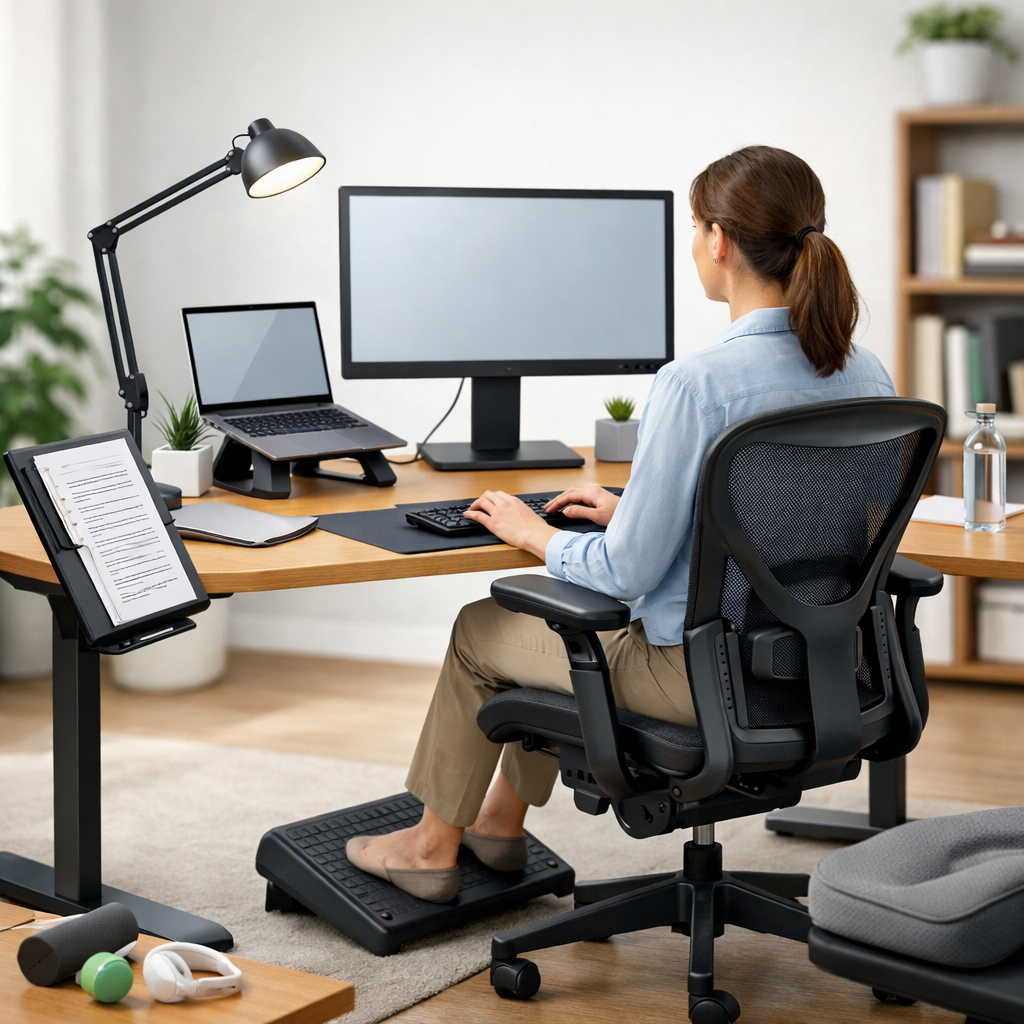
Sit back so your lower back is supported by the chair’s lumbar support.
If your chair does not offer enough support, a small cushion or rolled towel can help.
Armrests should support your arms lightly without forcing your shoulders upward.
Place your screen at the right height
Your monitor should be directly in front of you, about an arm’s length away.
The top of the screen should usually sit at or slightly below eye level.
This helps reduce neck bending and upper back tension.
If you use two screens equally, place them close together and centered.
If one screen is used more often, put that screen directly in front of you and the second to the side.
Laptop users often benefit from a separate keyboard and mouse so the screen can be raised safely.
Keep your keyboard and mouse close
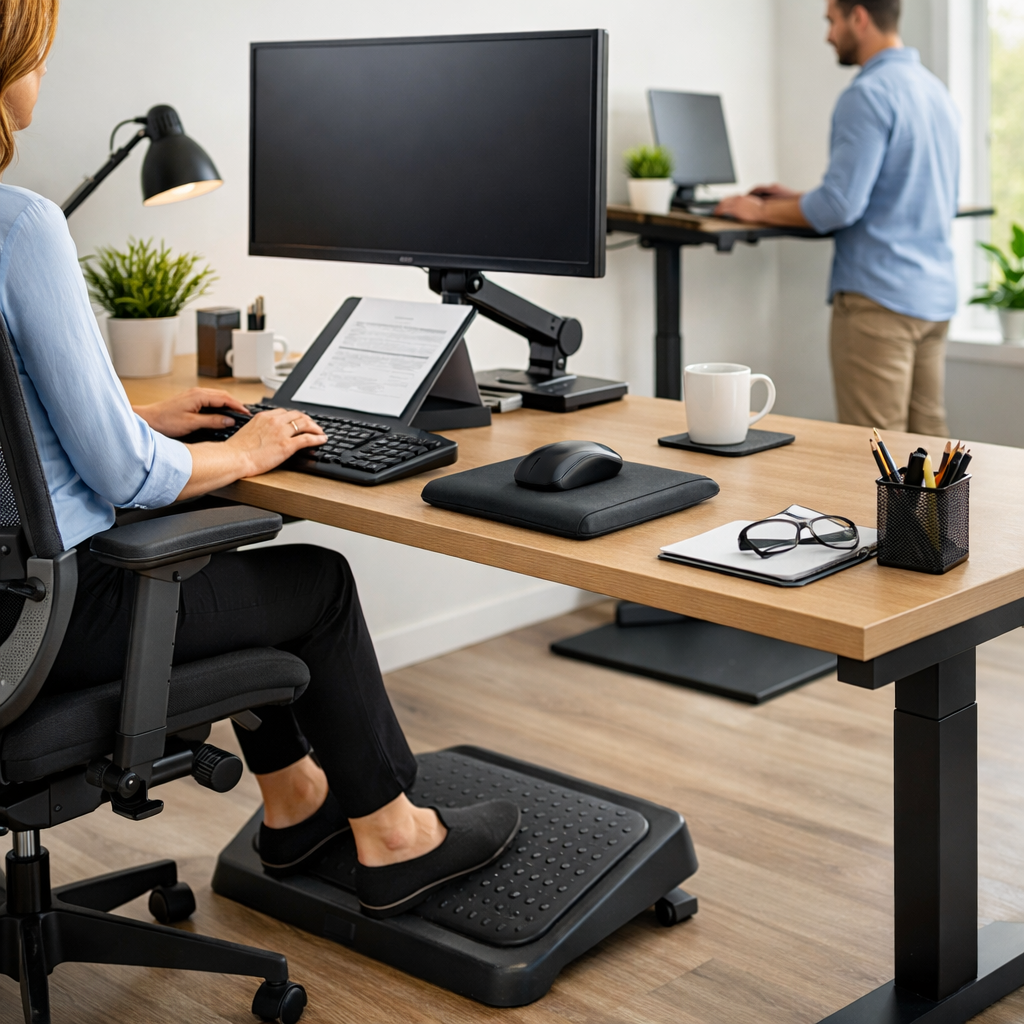
Your keyboard and mouse should be close enough that your elbows stay near your body.
Your wrists should remain straight, not bent upward or sideways.
Avoid reaching forward for your mouse all day, as that can quickly lead to shoulder and wrist discomfort.
- Keep frequently used items within easy reach.
- Place the mouse at the same height as the keyboard.
- Use document holders if you often type from paper.
- Avoid storing items under your desk where they limit leg space.
Office ergonomics tips that improve posture and reduce strain
Good posture is not about sitting stiffly or trying to be perfectly upright for hours.
It is about maintaining a relaxed, supported position and changing posture often.
Even the best setup will not feel comfortable if you stay frozen in one position all day.
Use neutral working positions
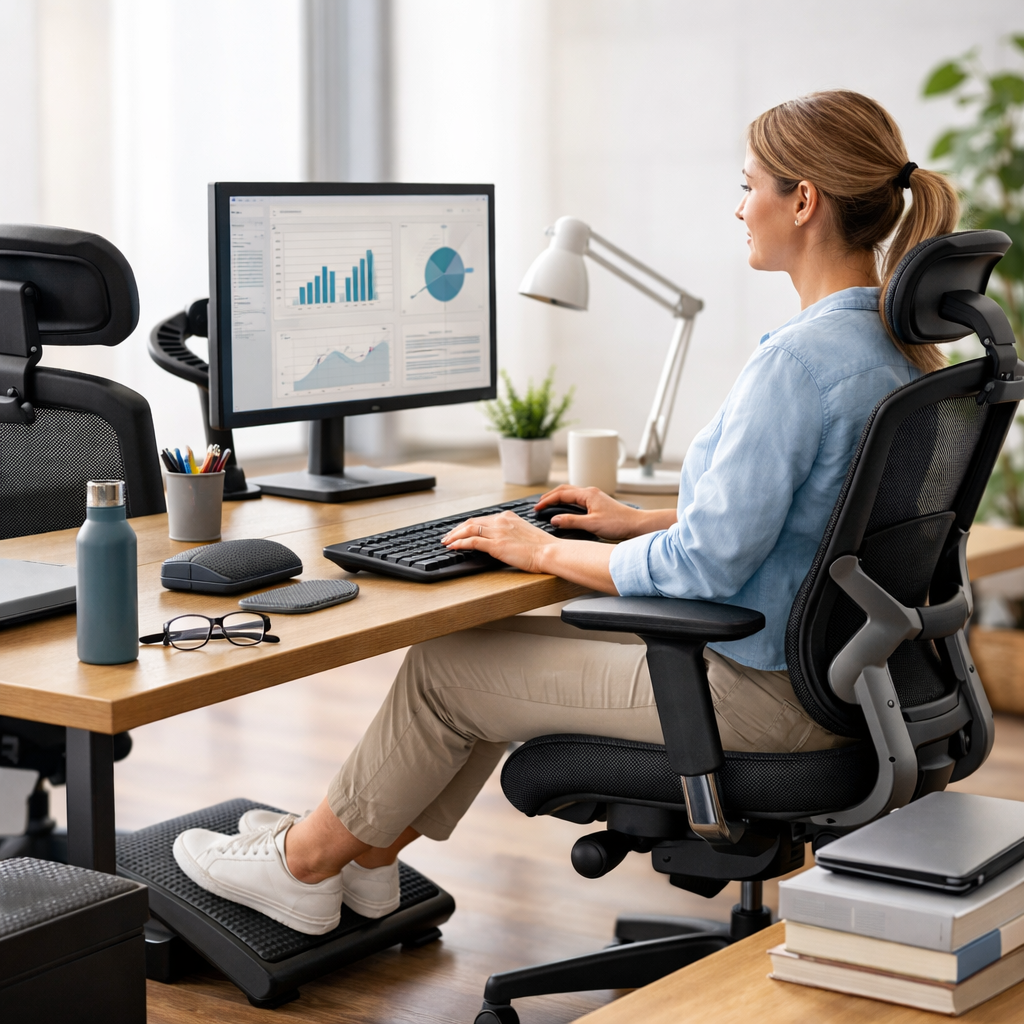
A neutral posture means your body is aligned in a way that reduces stress on joints and muscles.
Keep your head balanced over your shoulders, shoulders relaxed, elbows close to your sides, and wrists straight.
Your feet should be supported, and your back should be in contact with the chair as much as possible.
If you lean forward to see the screen, increase text size, bring the monitor closer, or check your glasses prescription.
If you perch on the edge of the chair, the seat height or back support may need adjustment.
These small signs often reveal the real source of discomfort.
Watch for early warning signs
One of the most useful office ergonomics tips is to act early.
Discomfort that starts as a mild ache can develop into a more serious problem if ignored.
Common warning signs include tingling in the fingers, sore shoulders, tension headaches, dry eyes, and pain that worsens toward the end of the day.
In workplace health and safety, the best approach is to control risks before they lead to injury.
The Hierarchy of Controls can be applied here in a practical way:
eliminate awkward tasks where possible, substitute poor equipment with better options, use engineering controls such as adjustable chairs or monitor arms, apply administrative controls like task rotation and micro-breaks, and rely less on personal coping habits alone.
| Common issue | Likely cause | Simple control measure |
|---|---|---|
| Neck pain | Monitor too low or off-center | Raise and center the screen |
| Wrist strain | Keyboard or mouse too far away | Bring input devices closer |
| Lower back discomfort | Poor lumbar support or seat height | Adjust chair and support lower back |
| Eye fatigue | Glare or prolonged screen focus | Reduce glare and take visual breaks |
Office ergonomics tips for movement, breaks, and daily work habits
Movement is one of the most overlooked ergonomic tools.
The body handles work better when you change positions regularly.
Long periods of sitting can reduce circulation, increase stiffness, and lower energy even if your workstation is set up well.
Take short, regular breaks
You do not need long breaks every few minutes.
Instead, aim for brief movement throughout the day.
Stand while taking a phone call, walk to speak with a colleague, or stretch between tasks.
A simple habit is to follow the 20-20-20 rule for eye comfort:
every 20 minutes, look at something 20 feet away for 20 seconds.
This helps reduce eye strain caused by constant close-up screen work.
You can also review practical visual comfort advice from the American Academy of Ophthalmology.
Build ergonomic habits into your routine
Some of the best office ergonomics tips are behavioral, not technical.
For example, avoid cradling the phone between your ear and shoulder.
If you spend a lot of time on calls, use a headset.
Try to vary tasks when possible.
Switching between typing, reading, meetings, and standing tasks can reduce repetitive strain.
If your work allows it, a sit-stand desk can be useful, but it is not a cure on its own.
The real benefit comes from changing positions regularly and setting the desk correctly in both sitting and standing modes.
- Stand up at least once every 30 to 60 minutes.
- Stretch your shoulders, chest, wrists, and hips gently.
- Blink more often when working on screens.
- Use reminders or calendar prompts if you forget to move.
- Report ongoing discomfort early to your supervisor or health and safety team.
If your organization is improving workstation health, it may also help to review your own workstation safety checklist or share a simple office risk assessment guide with staff.
These resources can make ergonomic improvements more consistent across teams.
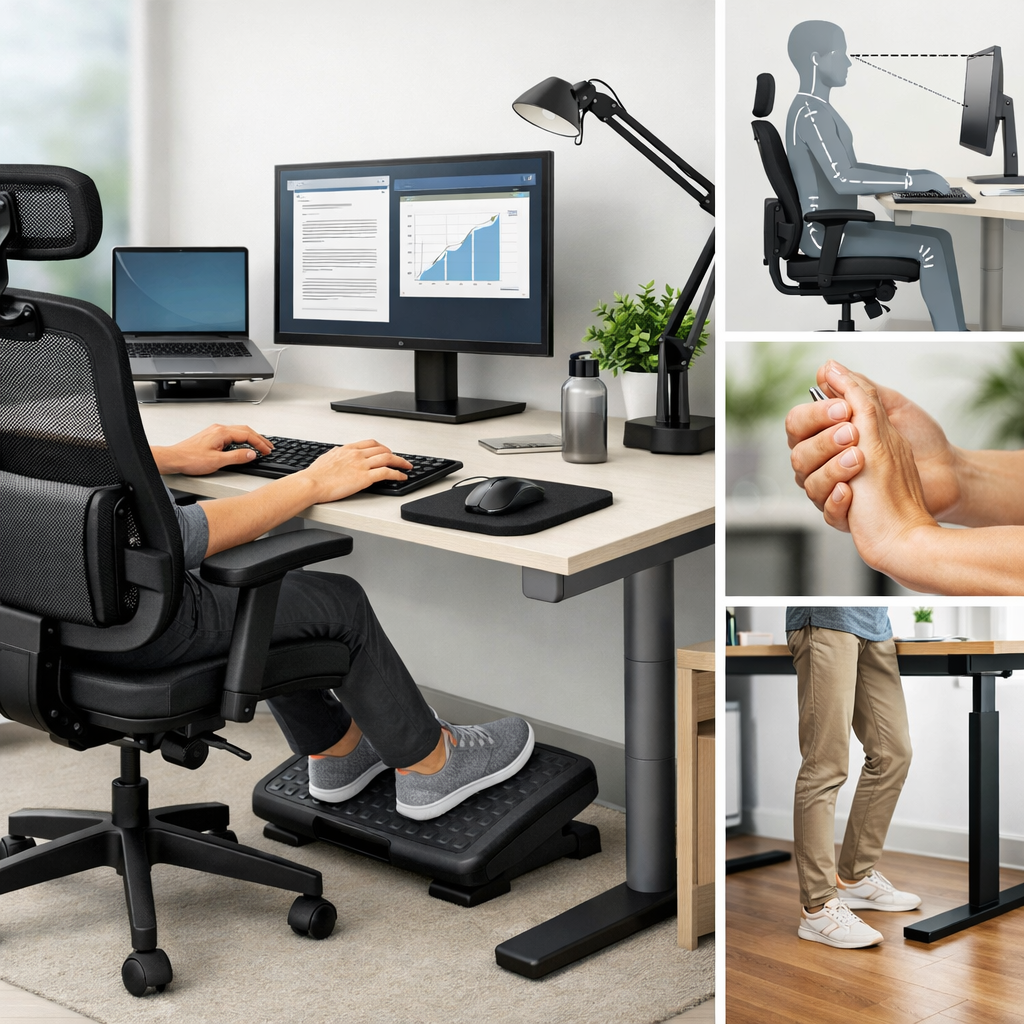
Office ergonomics tips for lighting, accessories, and productivity
Comfort is not only about chairs and screens.
Lighting, temperature, noise, and small accessories all influence how well you work.
When the environment is uncomfortable, concentration drops and fatigue rises.
Reduce glare and improve lighting
Position your monitor to avoid glare from windows or overhead lights.
If possible, place the screen perpendicular to windows rather than directly in front of or behind them.
Use blinds, curtains, or adjustable lighting where needed.
Screen brightness should feel similar to the room around you.
If the screen looks too bright, your eyes may tire faster.
If text is hard to read, adjust font size and contrast before you start leaning forward.
Choose useful accessories, not unnecessary gadgets
Not every ergonomic product is worth buying.
Focus on tools that solve a specific problem.
A footrest may help if your chair height leaves your feet unsupported.
A monitor arm can improve screen placement in tight spaces.
A headset is useful for frequent phone work.
A compact keyboard may reduce reaching for the mouse.
At the same time, remember that accessories do not fix a poor overall setup.
A wrist rest, for example, should support pauses between typing rather than encourage pressure on the wrists while typing.
Use tools to support neutral posture, not to work around avoidable problems.
Better ergonomics often leads to better productivity because discomfort is distracting.
When your body is supported, it is easier to focus, type accurately, and maintain energy throughout the day.
That means fewer interruptions, less fatigue, and a more sustainable work routine.
Office ergonomics tips are most effective when they are practical, consistent, and matched to the way you actually work.
Start with the basics: adjust your chair, place your screen correctly, keep your keyboard and mouse close, and move often during the day.
Then pay attention to early signs of discomfort and make changes before they become bigger issues.
For everyday office workers, simple office ergonomics tips can improve comfort, reduce risk, and support steady productivity over the long term.
No comments yet