
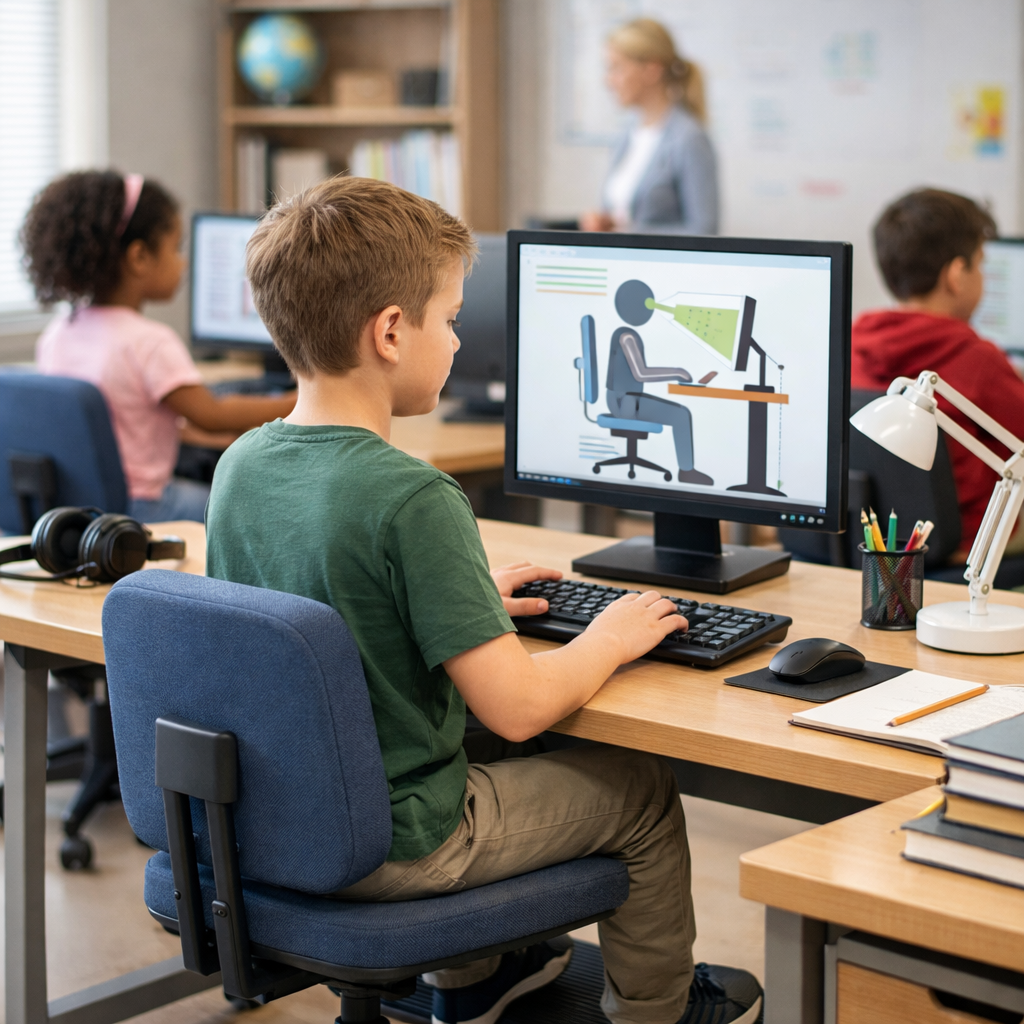

School computer ergonomics matters wherever students learn, whether that is in a classroom, library, residence, co-op placement, or at home. A well-set screen, chair, keyboard, and desk can help reduce awkward posture, eye strain, neck tension, and hand discomfort during homework, research, virtual learning, and part-time work tasks.
For Canadian families and schools, the goal is not a perfect workstation. It is a practical setup that fits the student, supports focus, and lowers the chance of strain over time. Good habits, simple adjustments, and regular breaks usually make the biggest difference.
Why school computer ergonomics matters for students
Students often spend long periods typing assignments, reading on screen, joining online classes, or using school-issued devices. When a screen is too low, a chair is too high, or wrists are bent for long periods, the body may compensate with slouching, reaching, or leaning forward.
That can create everyday problems such as sore shoulders, tired eyes, pressure on the lower back, and reduced concentration. For younger students, growth and changing body size mean a setup may need frequent adjustment. For older students and young workers, school computer ergonomics also carries over into workplace readiness for office, retail, administrative, and hybrid work environments.
In Ontario and across Canada, schools and families can use practical prevention principles similar to those promoted by health and safety organizations such as CCOHS and public health guidance from Health Canada. The focus should stay on preventing strain early rather than waiting until discomfort becomes a pattern.
School computer ergonomics: practical screen and desk setup
Set the screen at a comfortable height and distance
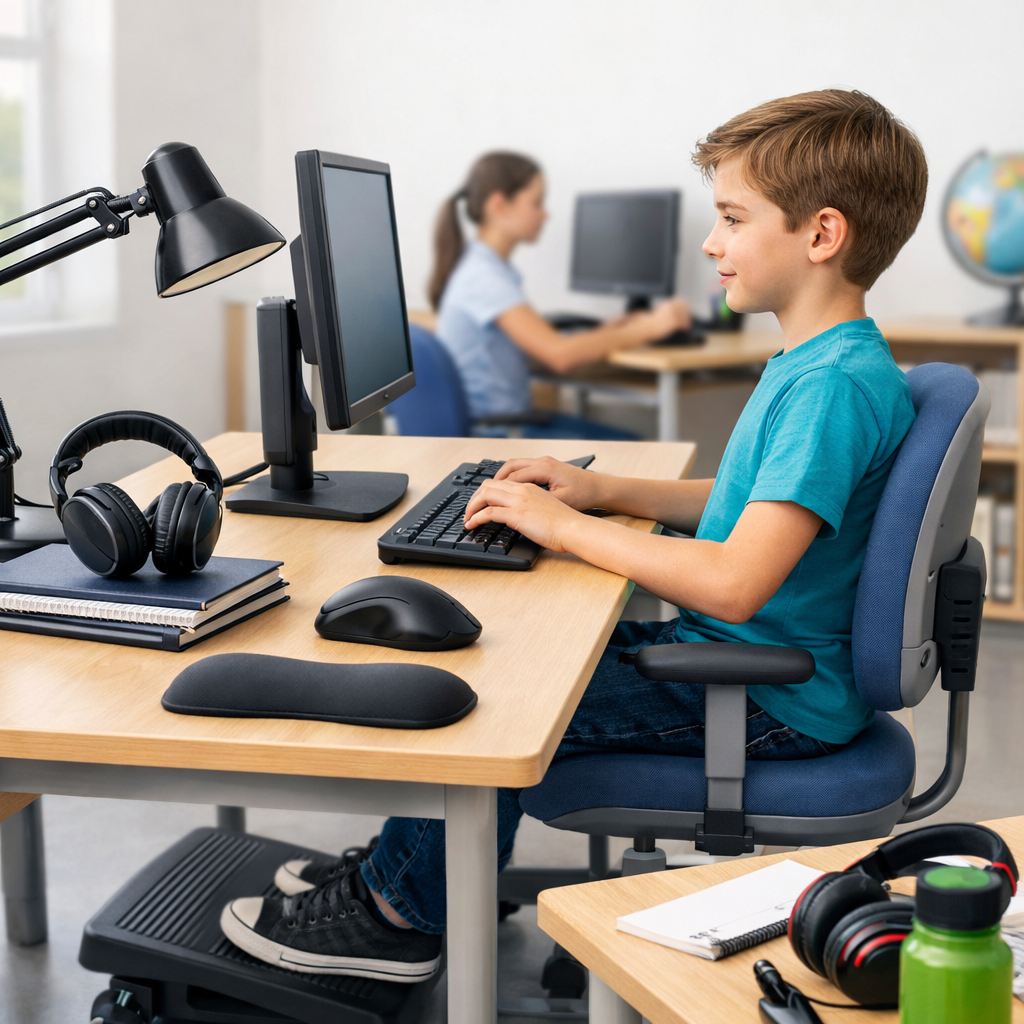
The screen should be directly in front of the student, not off to one side. In most cases, the top of the screen should sit at about eye level or slightly below, so the neck stays in a neutral position. If a laptop is too low, raise it with a stable stand or books and use a separate keyboard and mouse when possible.
A comfortable viewing distance is usually about an arm’s length, adjusted for screen size, vision needs, and task. Text should be easy to read without leaning forward. Reduce glare from windows or bright overhead lighting by repositioning the monitor rather than twisting the body.
Adjust the chair and desk to support neutral posture
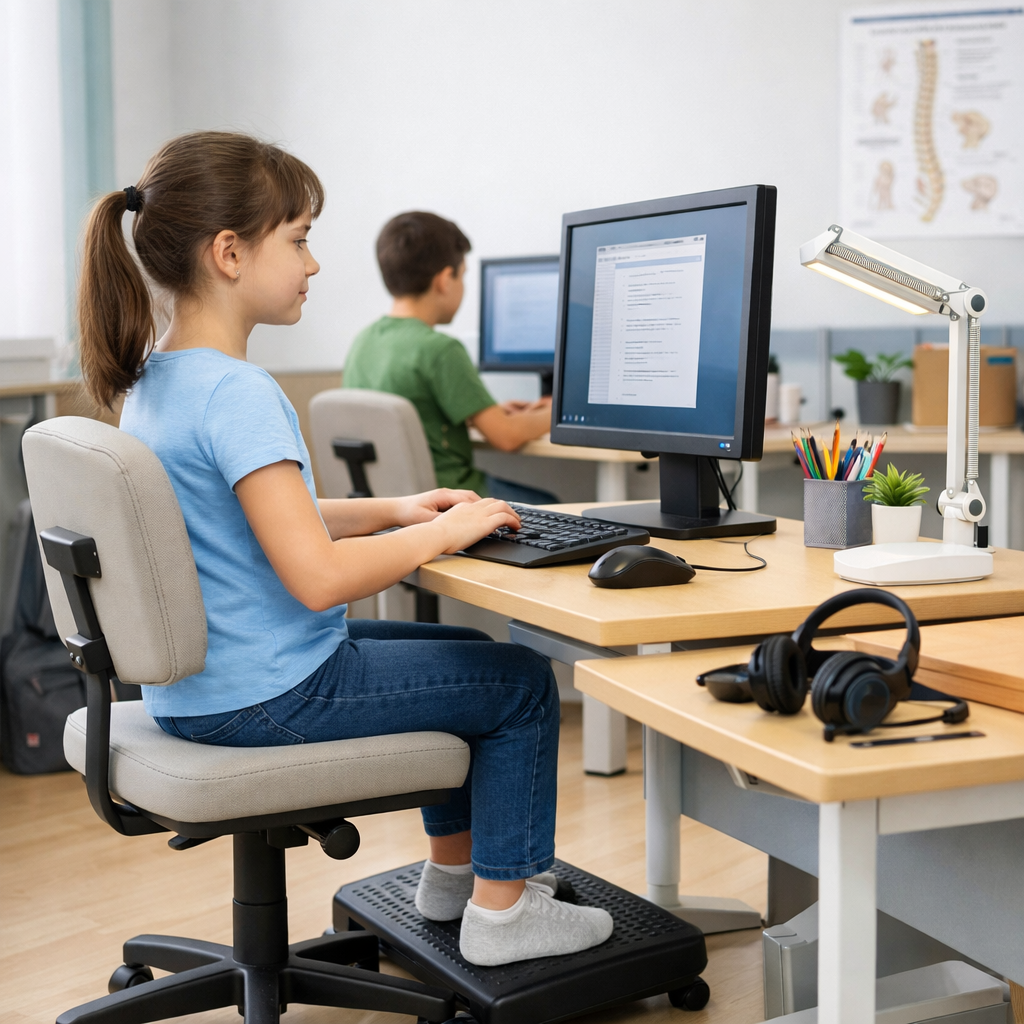
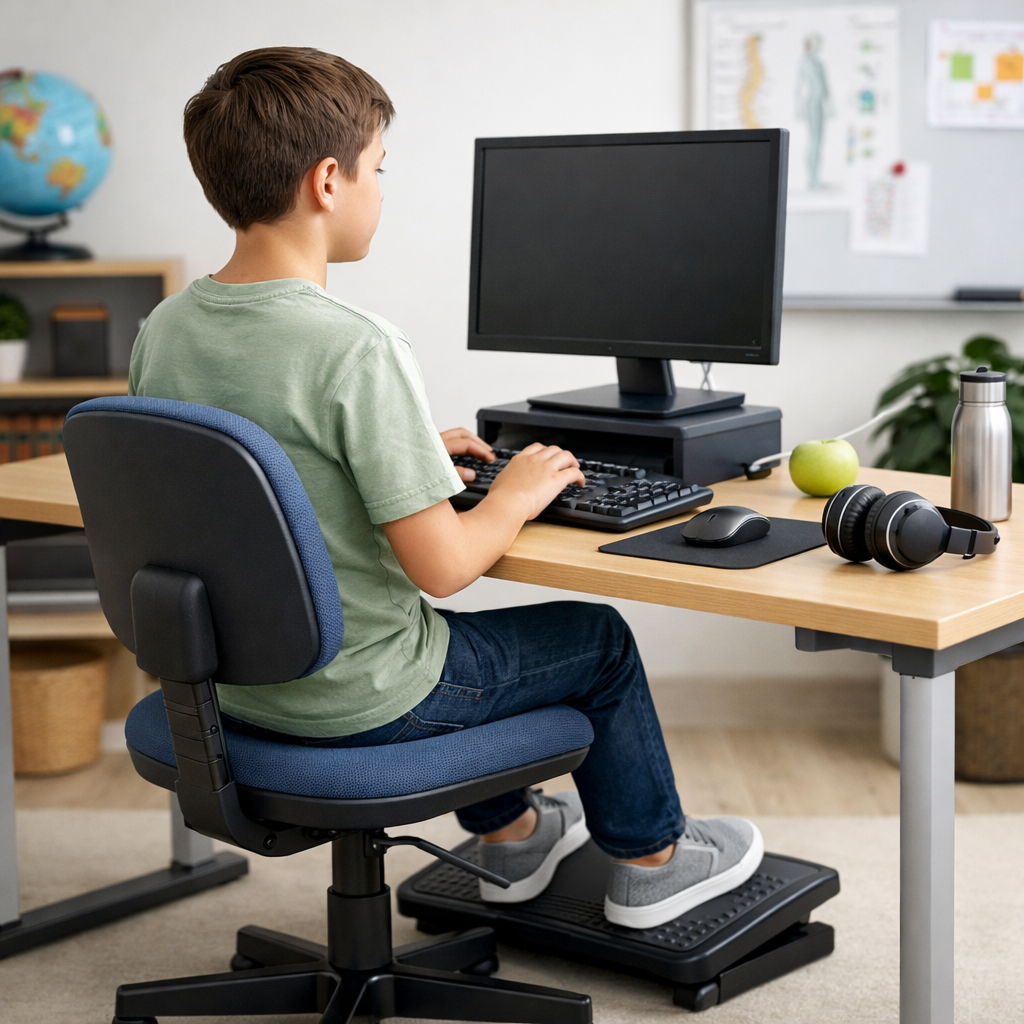
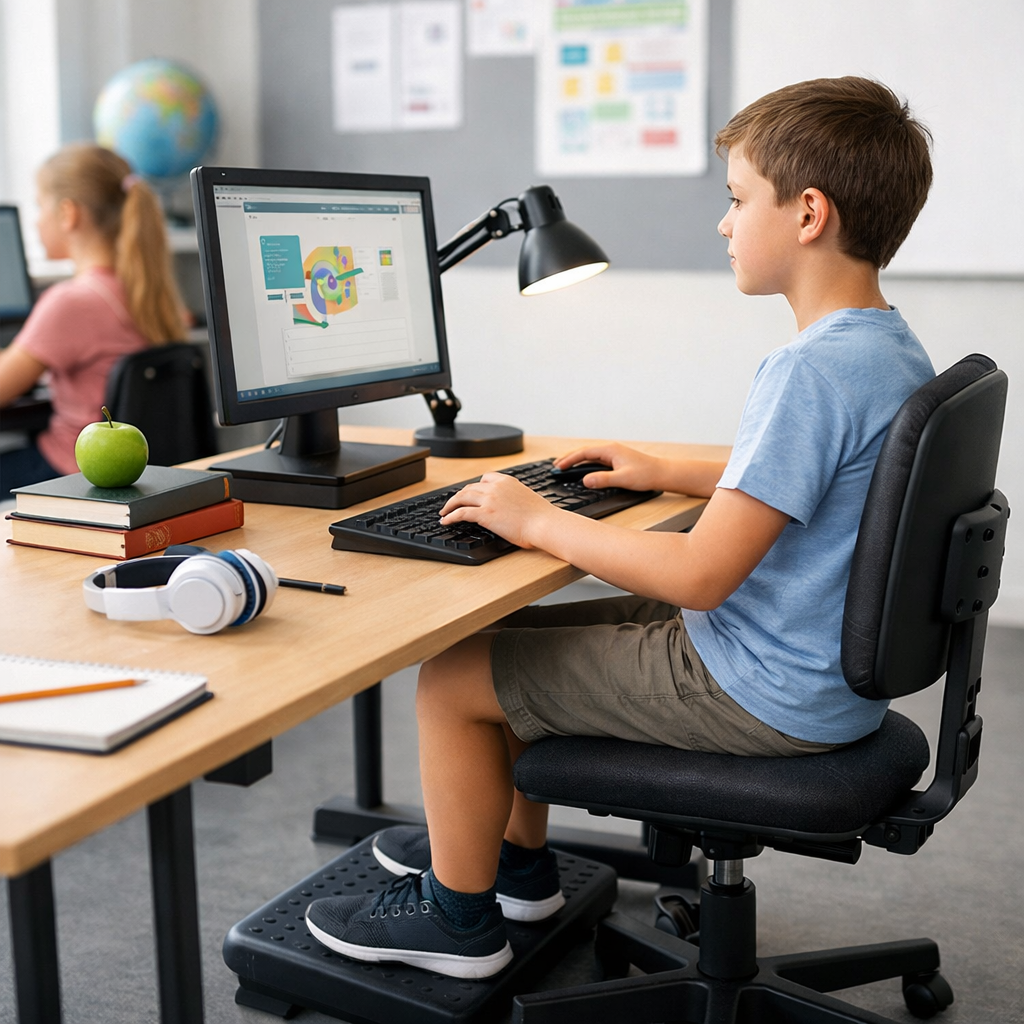
Students should sit back in the chair with the back supported. Shoulders should stay relaxed, elbows close to the body, and forearms roughly level when typing. Feet should rest flat on the floor or on a firm footrest.
If the desk is too high, raising the chair may help, but then the feet may need support. If the chair is too deep for a smaller student, a cushion or rolled towel behind the lower back can improve support. A desk setup does not need expensive furniture to support school computer ergonomics. It needs fit, stability, and sensible adjustment.
Keep keyboard, mouse, and school materials within easy reach
Frequently used items should stay close to avoid repeated reaching. The keyboard and mouse should be on the same surface and close enough that the student does not stretch forward. Wrists should stay as straight as possible, without resting on a hard desk edge for long periods.
When working from books or worksheets, place materials beside the screen at a similar height if possible. This helps reduce repeated neck bending between page and monitor. For longer assignments, students can alternate between typing, reading, and handwriting to vary posture.
- Centre the monitor directly in front of the user.
- Keep the top of the screen at or slightly below eye level.
- Support the lower back and keep shoulders relaxed.
- Place feet flat on the floor or on a footrest.
- Keep keyboard, mouse, and notebook within easy reach.
- Increase text size before leaning closer to the screen.
- Reposition lighting to reduce glare instead of twisting posture.
Use prevention principles, not just equipment
Good school computer ergonomics is not only about furniture. It also depends on task design, movement, and routine. This is where a simple prevention mindset and the hierarchy of controls can help.
For example, eliminating or reducing long uninterrupted computer time is often more effective than adding accessories after discomfort starts. Schools can alternate digital work with discussion, paper tasks, lab work, or movement breaks. Families can encourage students to pause between homework blocks and avoid doing all studying from a bed or couch.
Administrative controls also matter. Teachers and supervisors can plan realistic computer-based workloads, especially for students in co-op, placements, or young office roles. Training students to recognize awkward posture, glare, repetitive reaching, and extended sitting is a useful control in itself. OHSE readers looking for broader safety education can explore OHSE.ca and related training options at learn.ohse.ca.
Personal adjustments are still important, but they should support the bigger picture: fit the task to the student where possible. If a device, workstation, or classroom arrangement cannot be adjusted safely, students should follow school or workplace procedures and ask a teacher, parent, supervisor, or manufacturer for guidance.
Common school computer ergonomics problems and simple fixes
| Common issue | Likely cause | Simple practical fix |
|---|---|---|
| Neck bending downward | Laptop screen too low | Raise the laptop and add a separate keyboard and mouse |
| Feet dangling | Chair raised to match desk height | Use a stable footrest or firm box for support |
| Shoulder tension | Keyboard or mouse too far away | Move input devices closer and relax elbows by the body |
| Leaning toward the screen | Text too small or glare on the monitor | Increase text size and reposition lighting or screen angle |
| Wrist pressure | Hard desk edge or bent wrist position | Adjust height and keep wrists straighter while typing |
Screen time itself is not the only issue. Static posture is often the bigger concern. A student sitting very still in a “good” posture for too long may still become uncomfortable. Encourage short posture changes, standing breaks, and eye breaks during study sessions.
Students using tablets should avoid holding them low in the lap for long periods. A stand, case support, or table surface can reduce neck flexion. For younger children, adults may need to check the setup more often because growth, chair height, and work habits change quickly.
A short checklist for daily school computer ergonomics
Before class or homework starts
- Is the screen directly in front of the student?
- Are the eyes level with the top area of the screen?
- Are the shoulders relaxed and elbows close to the body?
- Are feet supported?
- Can the student read text without leaning forward?
During computer work
- Change position regularly.
- Pause briefly between tasks.
- Look away from the screen from time to time.
- Keep commonly used items close.
- Report discomfort early to a parent, teacher, or supervisor.
For school boards, families, and student workers, it can also help to review broader safety information from Ontario.ca or injury prevention resources at Parachute where relevant. Local school, workplace, and equipment instructions should always guide final decisions.
School computer ergonomics works best when it is simple, practical, and reviewed regularly. A screen at the right height, a chair that supports the body, reachable equipment, and short movement breaks can make schoolwork more comfortable and sustainable. For students, parents, and educators, school computer ergonomics is a straightforward prevention step that supports learning today and healthier work habits in the future.
No comments yet